.png)
Use the Phonebook
The Phonebook feature in HelloSMS lets you manage individual contacts and store detailed contact data for one-to-one communication and personalization across the platform.
Contacts in your phonebook automatically display their saved name (or other configured fields) across all relevant views, such as New Message and Conversations, making it easy to identify who you are communicating with.
View and Manage Contacts in the Phonebook
To view an manage contacts:
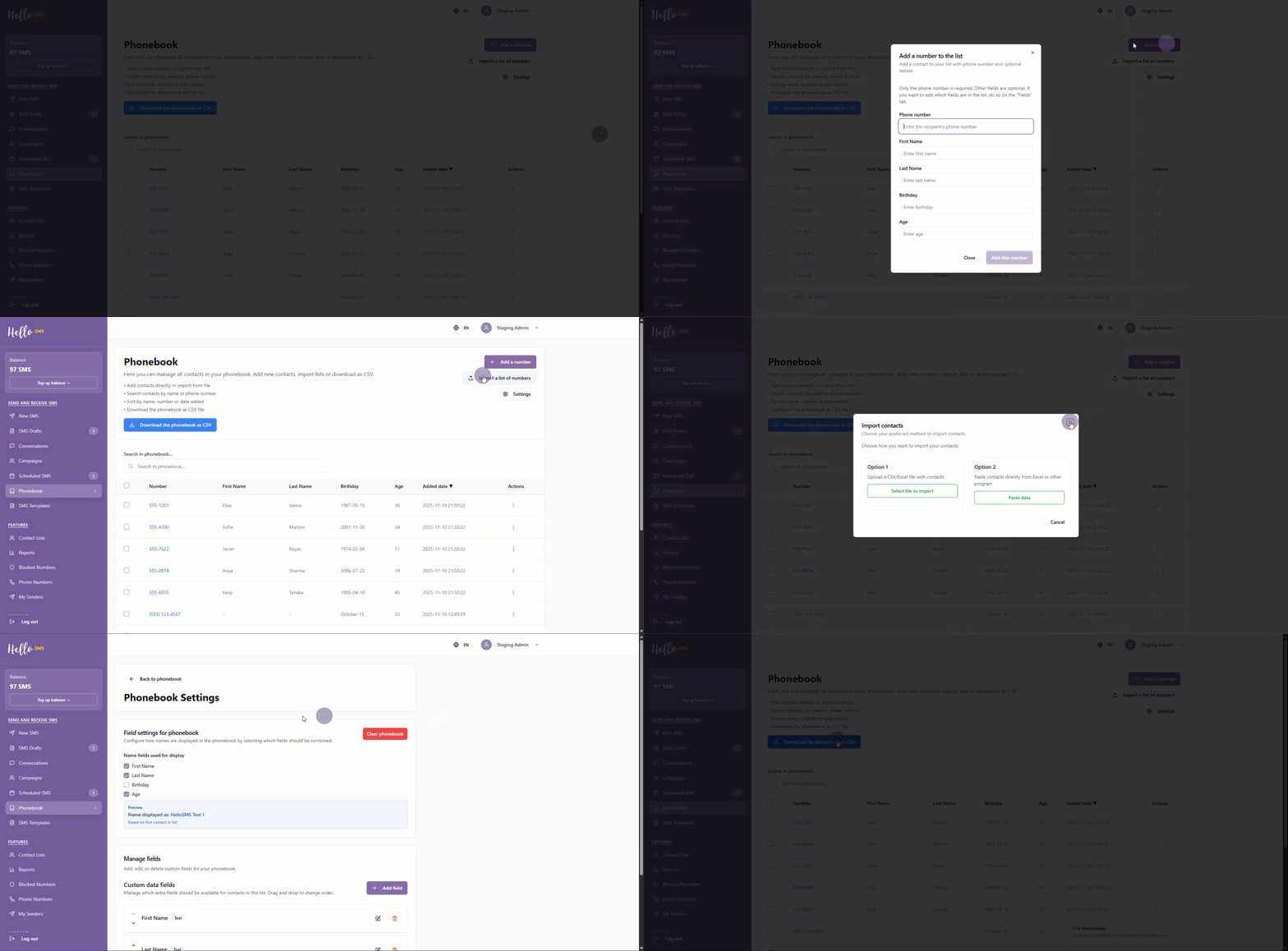
- Open the Phonebook page. You will see a complete list of contacts.
- Select Download the phonebook as CSV to save a copy of your contacts to your computer in spreadsheet format.
-
Use the Search in phonebook... bar to quickly look for specific contacts by name or number.

-
Select Settings to configure phonebook-related options.
Add a New Contact
To add a new contact to the phonebook:
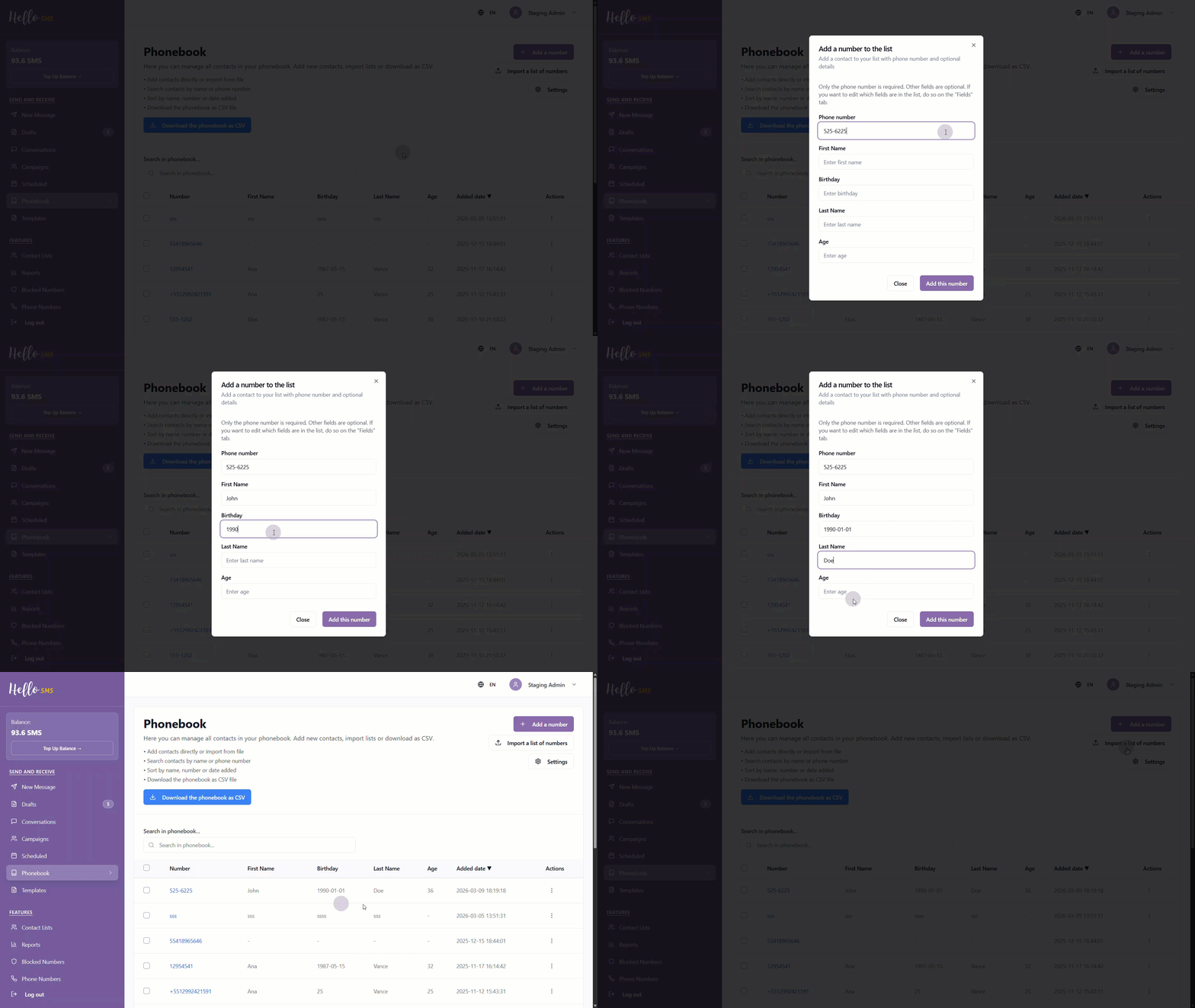
- Select + Add a number to manually create a new contact entry.
- Fill in the required fields:
- Phone number
- First Name
- Birthday
- Last Name
- Age
- Select Add this number to finish. After that, you can view the number added to the phonebook list.
-
You can also add a contact by importing data. To do that, select Import a list of numbers to add contacts in bulk.
See Import Contacts from a Spreadsheet or File or Import Contacts into a Contact List by Pasting Data to learn more.
Configure Displayed Contact Names
When adding or editing a contact, you can enter multiple fields such as First Name, Last Name, Birthday, or Age. However, the displayed contact name across HelloSMS is controlled separately through the phonebook field settings.
To define how contact names are shown across the platform:
- From the Phonebook page, select Settings.
- Under Name fields used for display, select the fields you want to use (for example, First Name and Last Name).
-
Review the Preview section to see how contact names will appear.
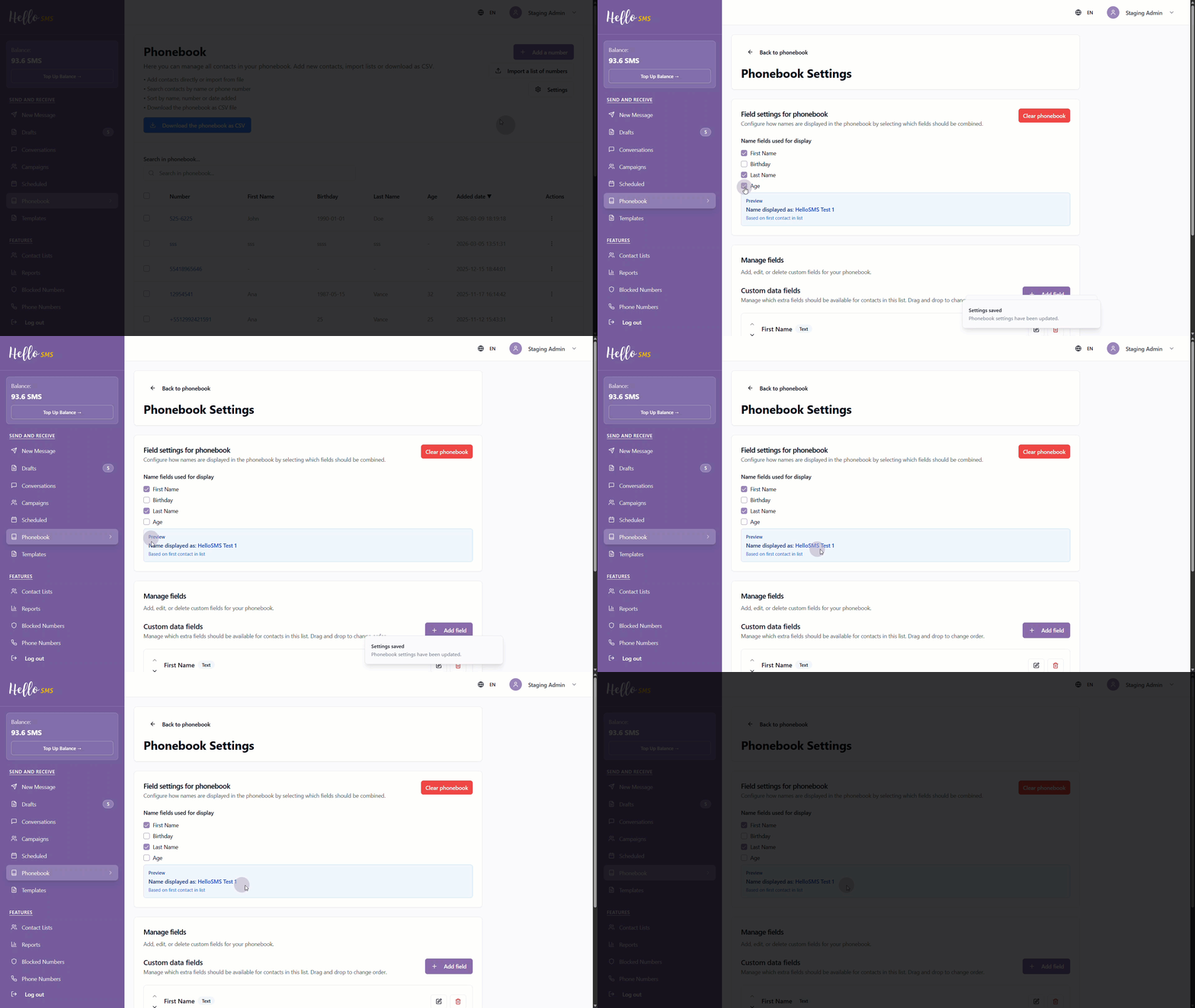
HelloSMS uses the selected fields to build the displayed contact name in the phonebook list, search results, dropdowns, New Message view, and conversations.
The preview is based on the first contact in the list and updates automatically as you change the selected fields.
Work with Contact Data
The Phonebook lets you work directly with contact data after it has been added. From the contact grid, you can review stored information, select multiple contacts for actions, and manage individual entries as needed.
- In the contact grid, you’ll see all available data fields. The fields shown depend on the custom fields you have configured.
-
Select the checkboxes next to one or more contacts to enable Send message to selected. See Send an SMS to learn more about composing your message.

- Select a phone number link to open the New Message page for that individual contact.
- In the Actions column, select the ... (ellipsis) next to a contact's row to manage them. If you click:
- Edit: Update the contact’s details and save your changes.
- Remove: Permanently delete the contact after confirmation.

By using the Phonebook effectively, you keep contact information accurate and consistent, ensuring contacts are clearly identified across messages, searches, and conversations throughout HelloSMS.
Learn More
See the following articles to learn more: